

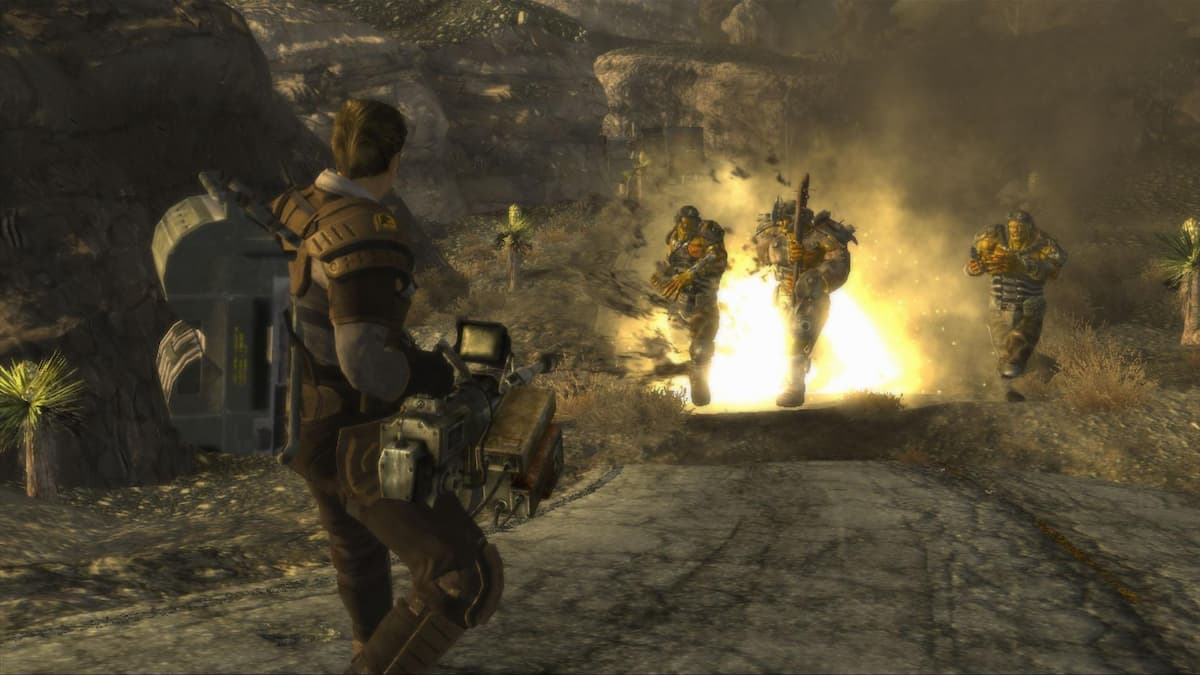
Introduction to Console Commands in Fallout New Vegas
Console commands in Fallout New Vegas are a powerful tool for gamers, offering a way to fix frustrating bugs and enhance the gaming experience by breaking the usual limitations. These commands are easy to use and can be a life-saver in older games like Fallout New Vegas, where bugs are common. Whether you’re trying to get out of a sticky situation or just want to add a bit of extra fun to your gameplay, console commands are an essential part of the game. This guide will walk you through how to access and use these commands, ensuring you can make the most of your gaming session.
Accessing the Console
To access the console in Fallout New Vegas, you need to press the backquote (`), tilde (~), or apostrophe (‘) key. The key location can vary depending on your keyboard layout, but it is usually found next to the "1" key and below the "ESC" key. When you press this key, the game will pause, and a white vertical bar will appear in the bottom left corner of the screen. This is your console, where you can type and execute commands. It’s important to note that the game will appear to be paused, and you might feel a bit lost at first, but just start typing, and the text will appear.
Important Considerations
Before you dive into using console commands, it’s crucial to understand a few important points. If you care about achievements, using console commands can be a double-edged sword. Spawning weapons, items, objects, and NPCs will disable achievements. However, you can still use console commands to fix bugs, such as your character clipping through walls, without losing your achievements. Always weigh the benefits of using a command against the potential loss of achievements.
Player Commands
Player commands in Fallout New Vegas are designed to enhance your character’s abilities and address common issues. Here are some of the most useful commands:
- tgm: Enables god mode, giving your character infinite health, unlimited ammunition, no need to reload, and the ability to carry unlimited items.
- tmm 1: Unlocks all map markers, making it easier to navigate the game world.
- tm: Toggles the HUD (Heads-Up Display), which can be useful for taking screenshots or creating a more immersive experience.
- setownership: By left-clicking on an item and typing this command, you can make the item yours or an NPC’s. This is particularly useful for beds and other items that are initially unowned.
- clearownership: Removes ownership from a selected item, making it unowned.
- unlock: Unlocks doors, safes, terminals, or any other locked containers.
- lock: Locks doors, safes, terminals, or any other unlocked containers and sets a difficulty level from 0 to 100. Setting it to 101 requires a key.
- setpccanusepowerarmor 1: Makes power armor wearable. Typing 0 instead of 1 will prevent you from wearing it.
- player.advlevel: Levels up the player by one level.
- player.setav [skill name] [1-100]: Sets the skill level for a specific skill.
- setspecialpoints [1-10]: Sets S.P.E.C.I.A.L. points for your character.
- player.setlevel: Allows you to set your character’s level.
- tfc: Toggles the Free Camera mode, which is useful for exploring the game world without your character.
- tcl: Enables no-clipping mode, allowing for free movement. This is particularly useful if you get stuck in the environment.
- disable: Removes a selected object from the game until you start a new game. To undo this, select the item and type "enable."
- zap: Deletes an object from the game until you return to the main menu.
- player.modav carryweight [number]: Sets the maximum carrying weight to a specific number.
- addreputation: Adds player reputation with a town or faction. Typing 1 adds fame, while typing 0 adds infamy.
- removereputation: Removes player reputation with a town or faction.
- player.setreputation: Sets player reputation with a town or faction.
NPC Commands
NPC (Non-Player Character) commands are useful for managing and interacting with other characters in the game. Here are some key commands:
- resurrect: Revives a selected NPC and resets their inventory.
- resurrect 1: Revives a selected NPC without resetting their inventory.
- kill: Kills the selected non-player character. Be cautious with this command, as killing quest-related NPCs can lead to failed quests.
- killall: Kills all non-invincible NPCs in the nearby area. This command can be dangerous, especially in Hardcore mode, as it can also affect your companions.
- tdetect: Disables A.I. player detection, making the player always hidden.
- addtofaction: Adds a selected NPC to a specific faction. Replace X with either "1" to make the NPC an ally of the faction or "0" to make them friendly.
- removefromfaction: Removes an NPC from a specific faction.
- tcai: Disables all non-player character combat A.I., making them friendly.
- tai: Disables the A.I. of all or selected NPCs.
- OpenTeammateContainer 1: Opens an NPC’s inventory like they were a companion, allowing you to transfer items.
- SetRestrained 1: Causes an NPC to stand in place, not engaging in combat or carrying out AI packages.
Spawning Commands
Spawning commands allow you to add items, creatures, NPCs, and objects to your game. To use these commands, you need to know the item’s ID. Here are the most useful spawning commands:
- player.additem: Adds an item to the player’s inventory. All spawned items will be undamaged.
- player.placeatme: Spawns creatures, NPCs, static objects, and containers. This command is particularly useful for summoning enemies or allies for testing or fun.
Conclusion
Console commands in Fallout New Vegas are a valuable tool that can enhance your gaming experience, whether you’re trying to fix a bug or just looking to add a bit of extra fun. By familiarizing yourself with these commands, you can take control of your game and create a more enjoyable and immersive experience. Remember to use these commands responsibly, especially if you care about achievements, and always consider the potential consequences before executing a command. Happy gaming!